
Partition SD Card
Partition SD Card
Suggest Edits
If you bought your micro SD card from Aerotenna, you don't need to do this step. But if you're using your own, you'll need to partition your SD card.
Connect the SD card to your computer. Open a terminal in Ubuntu, download GParted if you haven't already:
$ sudo apt-get install gparted
Then open up gparted:
$ sudo gparted
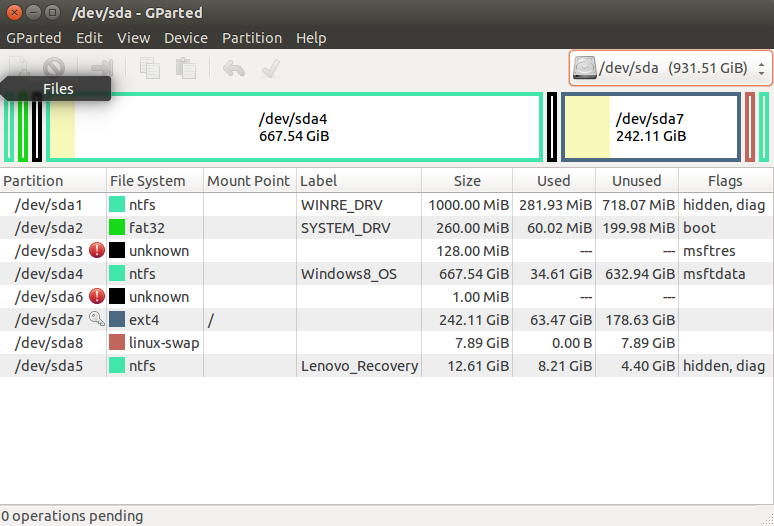
GParted UI
- Use the top right drop-down menu to toggle over to the SD card.
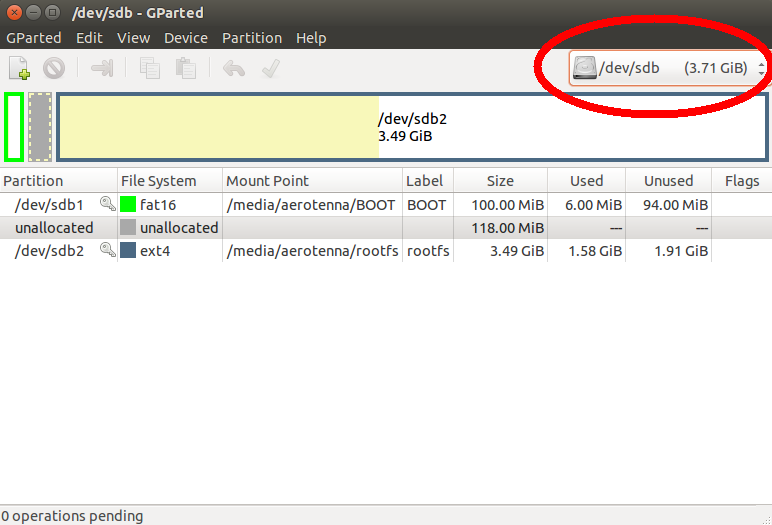
Switch to SD Card
-
If there are previous partitions you MAY have to right click and 'unmount' them before deletion is possible.
-
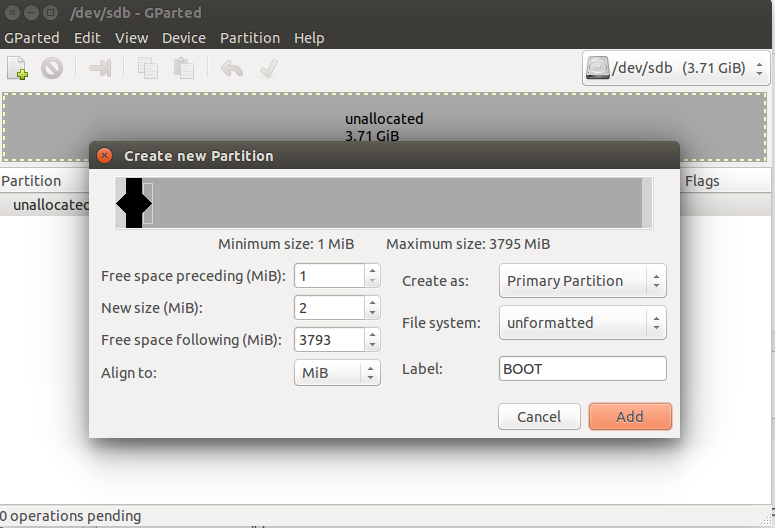
Once you have deleted all the prior partitions, if any. Create a new partition and set the following parameters. New size(MiB): 2 , File system: 'unformatted' and Label: 'BOOT.'
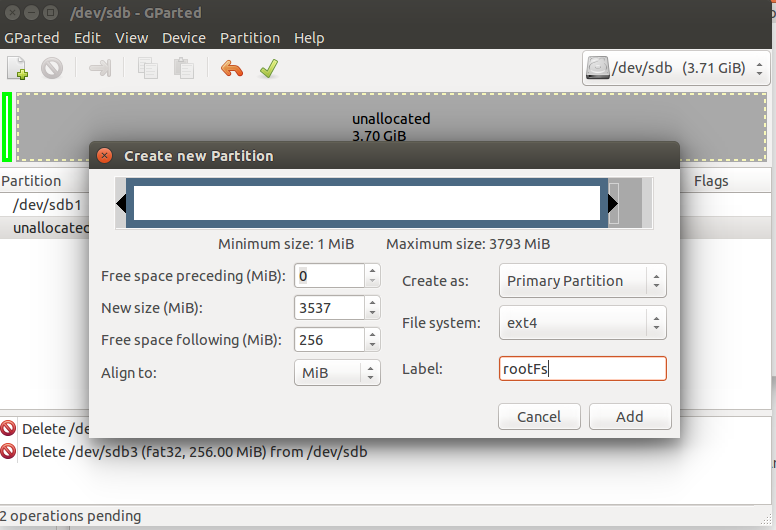
- Create the second partition and set the following parameters. Free space following(MiB): 256, File system: 'ext4' and Label: 'rootFs'.
- Create the third partition and set the following parameters. New size(MiB): 256, File system: 'fat32', Label: 'FAT'.
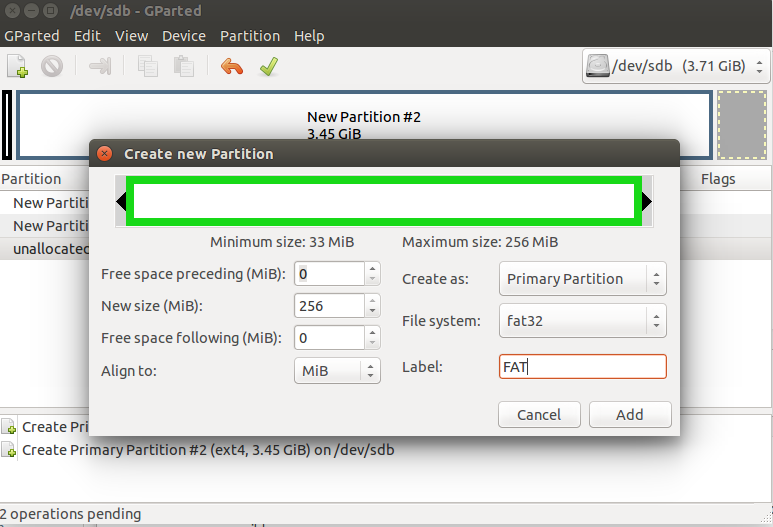
Your memory allocation should look similar to this.
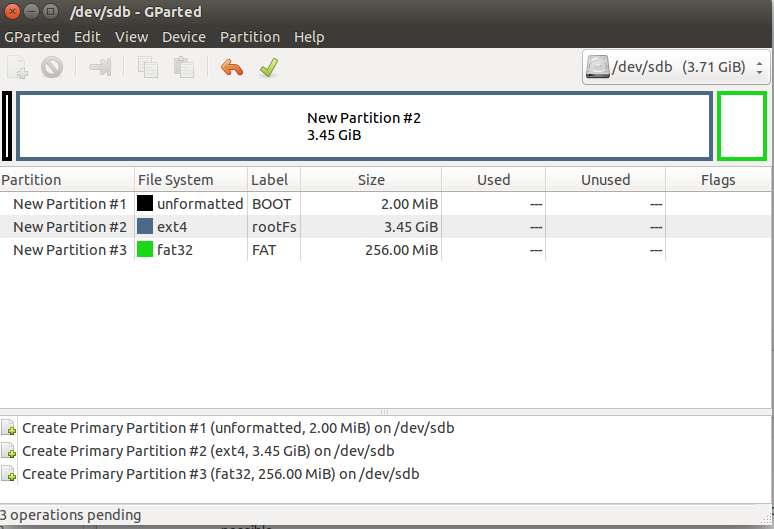
The 'Size' of rootFs will probably be different, this is okay.
Click the green check mark and 'apply' and GParted will take care of the rest. Your SD card is now formatted to work with the OcPoc with Altera Cyclone. You are now ready to load the files onto the SD card.
Updated less than a minute ago